
- Training
- Service
- Promotion
- Schedule
- Testing Center
- News
- Contact
7/6/2021


.jpg)
Would you like to become a Sway expert?
|
Switching layouts |
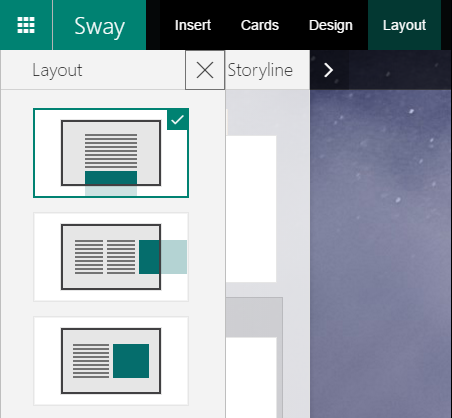
In Sway you can pick from three different layouts to display your content.
Unlike any other software, in Sway you can change the layout at any time and leave it to Sway to make that layout look good. The three layouts are: Vertical, Horizontal, and Slideshow. You can also specify whether Sway should use a right-to-left layout (for RTL languages).
When giving a presentation, you might want to use the slideshow layout, where you move through the Sway frame by frame. In this layout you can group content to ensure it fits on one slide. For a more classic reading experience, you might use the vertical or horizontal layout. Both are optimized for that experience, and they use scrolling, rather than frame-by-frame movement.
|
Switching styles |
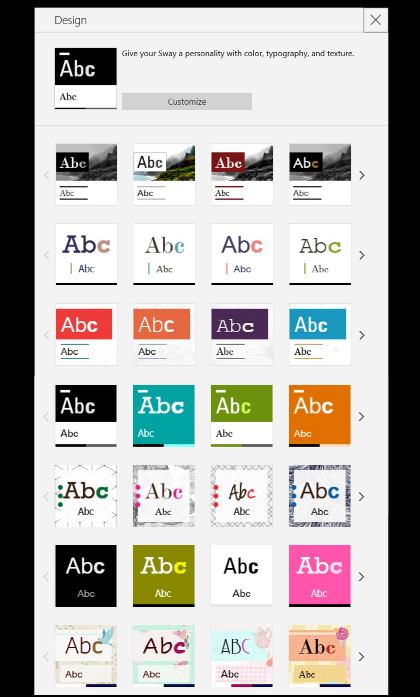
Sway offers seven core styles that differ in the way content is laid out, in the use of decorators, image caption treatment, and in the use of color and textures in the background.
The first row offers a unique style, which combines image filters, bold and sophisticated title treatment and backgrounds, a framed image treatment, and is left-aligned. With this style you could explore different image treatment that fit the mood of your Sway.
The second style offers a clean and elegant design, center-aligned text and images, and places images one below the other.
The third style uses sophisticated title treatment and backgrounds, a framed image treatment, and is left-aligned. In this style, images are positioned side by side, or one under the other, depending on available space.
The fourth style offers a modern design perspective and offers left-aligned text. Image layout is optimized to fit available space.
The fifth style offers a bold design attitude, using a rich variety of background textures, vivid decorators, and playful interplay between the content and the background. Images are laid out in a non-formal manner, giving this style a more personal feel.
The Sixth style, optimized for photo album scenarios, offers a clean yet sophisticated approach by focusing on user content first. It center-aligns text and images, and automatically arranges the images in the best possible grid layout.
The seventh style offers an expressive perspective, using playful backgrounds, text back-planes and decorators.
|
Selecting image caption treatment and text orientation in vertical layout |
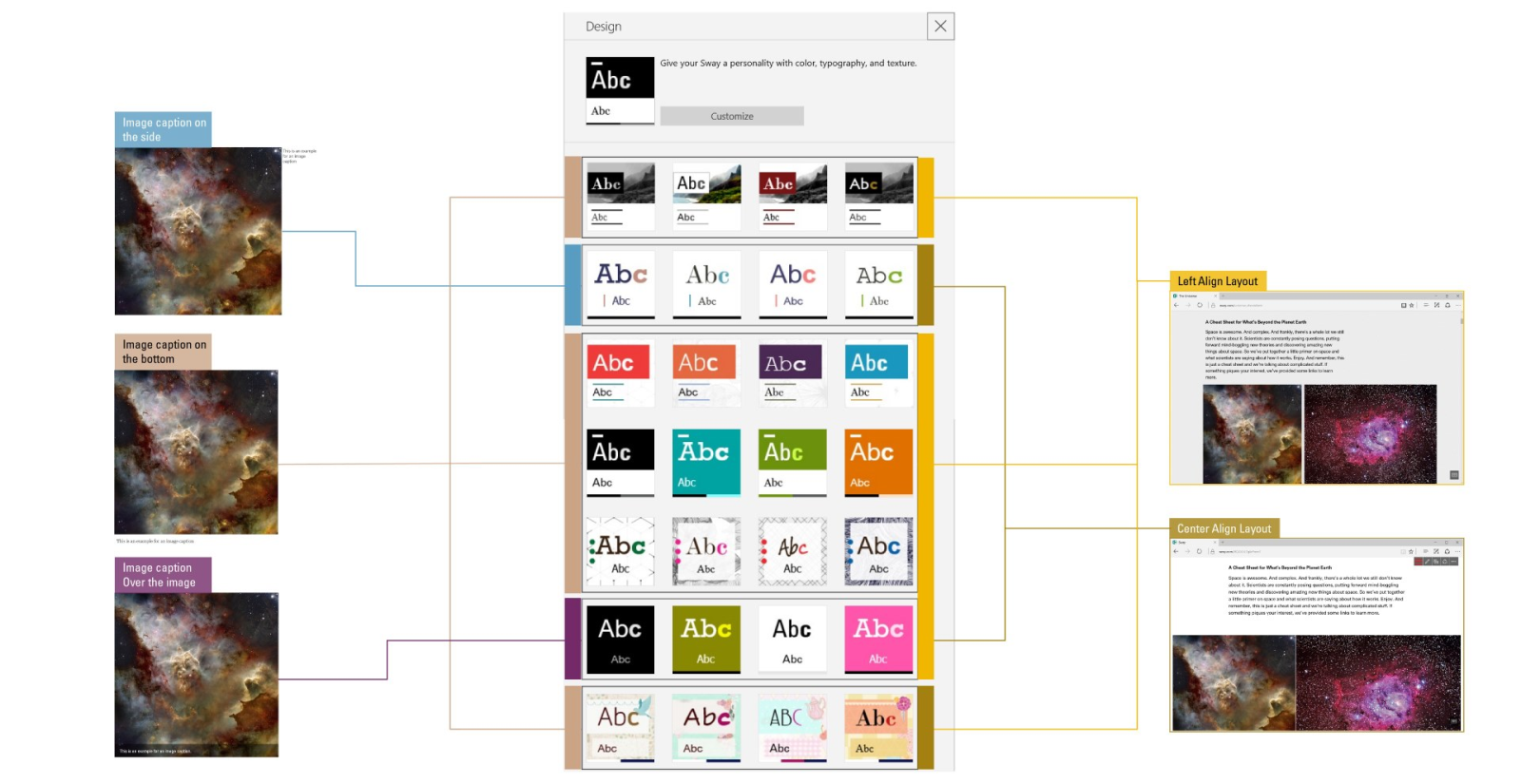
In Sway, selecting a style also means changing whether the text will be center or left align, or whether the image captions will be laid on the right, below, or over the images.
|
Customizing a style |
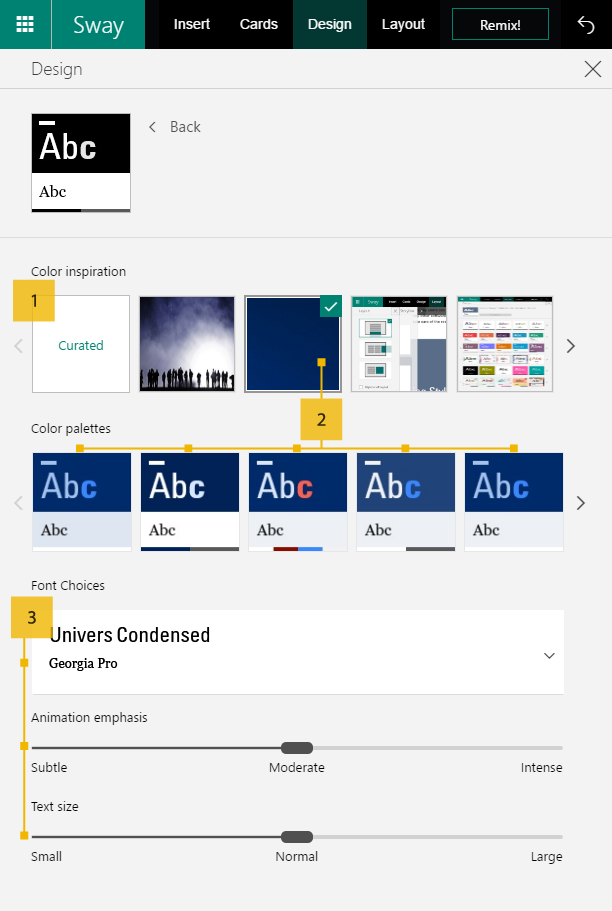
Color inspiration lets you use an image you like and apply its colors in your Sway.
How cool is that?
If you are eager to add a bit more spice to your Sway, head on over to the Customize style pane where you will find a few additional design options.
Let's say you have a color you really like, and want to use it in your Sway.
All you need is to add an image with that color to your Sway, pick that image in the color inspiration, and Sway will generate color palette options for you to pick from.
in addition, here are three additional powerful functions that Sway offers: The ability to pick from other font pairs that better fit your preference or need, the ability to reduce or amplify the animation level Sway offers, and the ability to change the text size.
|
Switching styles by using Remix |

At the top of the window you will see a button named Remix. Tapping this button will magically change your Sway's style and layout, allowing you to quickly explore many alternatives. Once you find something you like, you can go on and focus on creating your content without spending more time on design decisions.
|
Adding the right images to complement your story |
Your story will flourish the more you complement it with rich visuals and live content.
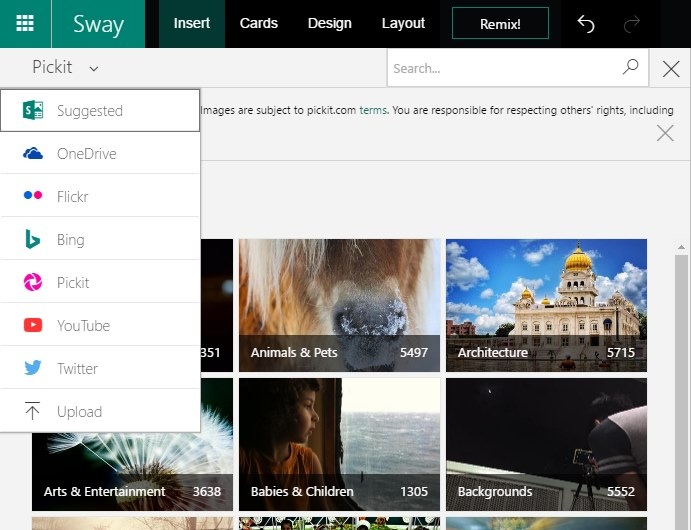
High-definition images are typically more effective, as they scale well across different device sizes. Using Sway's Insert menu, you can upload your own images from your OneDrive folder or your computer, or you can select images from Bing, Flickr, or Pickit.
Just click the Sources drop-down menu at the top left, and select one of the many sources Sway has to offer.
.png)
|
Placing text besides an image in vertical layout |
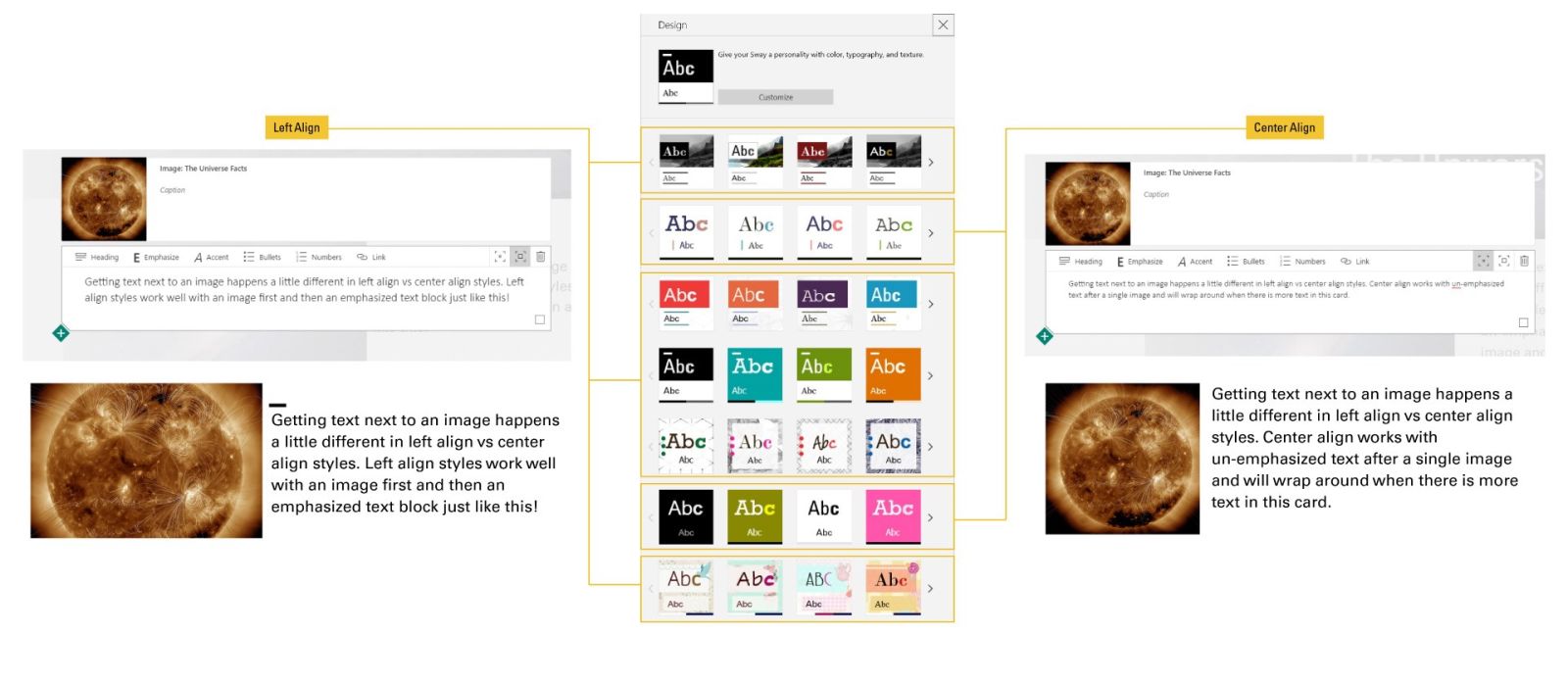
As you've seen, this Sway often uses a layout in which text is beside an image.
This is a very useful way to associate text with an illustrative visual. To achieve that, you can pick one of the four Sway Styles circled in the image, group an image and a text card, and emphasize the text card, as shown in the image.
|
Making sure the important part of your image is always shown |
.png)
One of Sway's powerful features is allowing you to identify the most important part or parts of an image. That way, regardless of the device your Sway appears on, the right part of the image will be emphasized when it is displayed.
|
Adding videos and animated images |
Videos and animated GIFs can make a Sway more compelling. In Sway, you can add animated GIFs to the heading. You can also add videos that you have taken, or you can look for videos that suit your needs in Bing or YouTube by using the Insert Sources drop-down list.
|
Making a statement with emphasis |
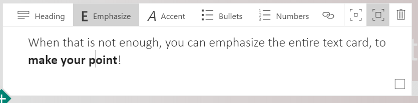
The Emphasize command lets you bold a word or an entire sentence to draw your reader's attention.
When that is not enough, you can emphasize the entire text card to make your point!
|
Adding color as a background for a heading |
Let's imagine that you would like a different color as your heading background, to highlight that heading. All you need to do is to place a single color image as the background for that heading, as shown in the heading above.
|
Adding an image to a heading background |
Another way to make an impact is to add an image as the heading background.
It is best to use a high-definition landscape image with substantial negative space.
|
Making text scroll over image* |
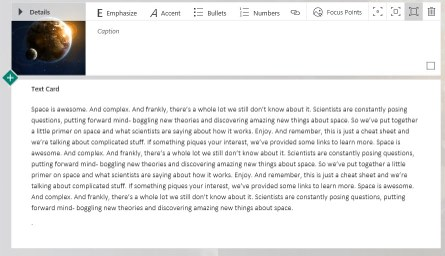
Another delightful moment can be achieved when you fully emphasize an image, and a text card follows it. In that case the text will go over the image as users scroll.
*Please remember that to see this effect you will have to play your Sway. :)
|
Evaluating how your Sway will look on a phone |
Sway automatically optimizes your content to fit any device or screen size. Oneway to see how it will look is to send yourself the link to the Sway and open it on your mobile devic e. Another way would be to duplicate your browser window, make the window narrow and long, and play your Sway there.
.png)
|
Pick the right photo grid for your needs |
Sway offers you two types of photo grids. The Automatic grouping offers a dynamic layout to fit the screen size, and it changes certain image sizes to accommodate that. Grid grouping is optimized to show all the images in the same size, for cases where that is appropriate.
|
Automatic photo group |
.PNG)
|
Uniform grid photo group* |
.PNG)
|
Add a tweet |

Tweets are another type of modern content you can add to enhance your story.
You can search for a tweet that fits your needs in the Twitter sources, or you can copy a link to an existing tweet into the search box, find that tweet, and then add it.
|
Add interactivity: Forms, Stack, Comparison,or Slideshow |
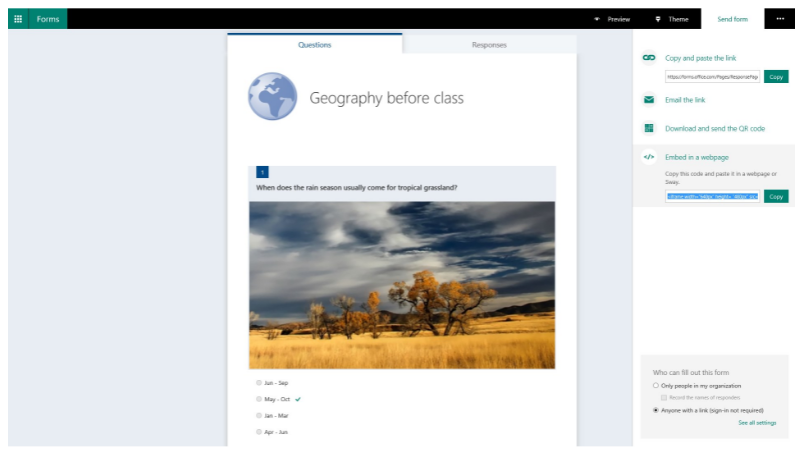
A Form allows you to add Quiz or Questioner to your Sway, directly engage with your audience, and track their responses.
A Stack group lets your viewers click through a set of images one at a time.
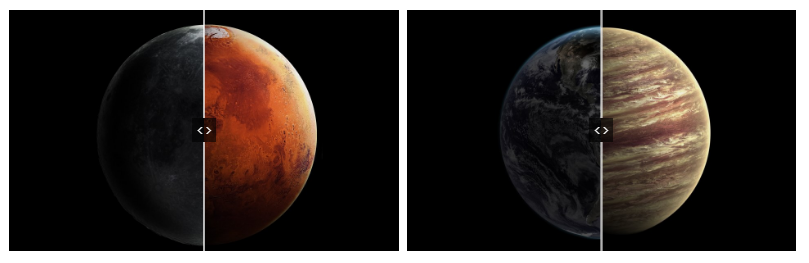
A Comparison group puts two images side by side joined by a splitter control that viewers can drag left or right to see more/less of an image.
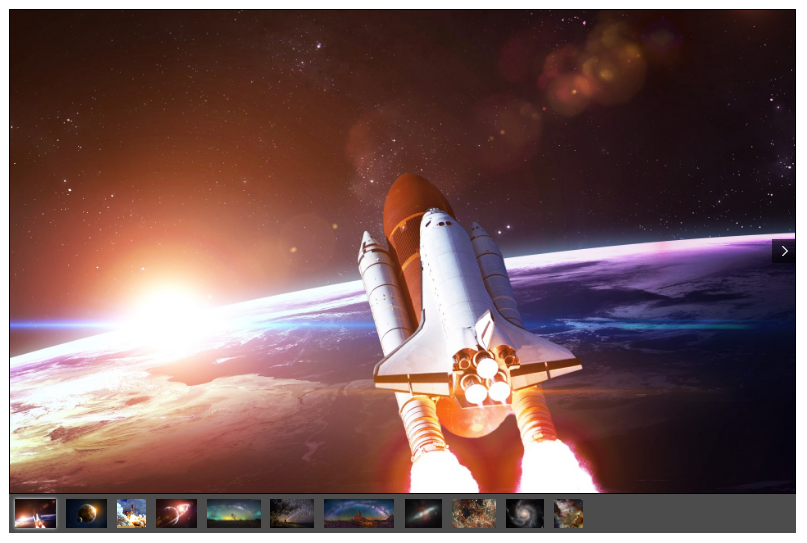
A Slideshow group arranges a set of images so that viewers can click through the set one at a time by using arrows at the left and right margin of each image.
|
Forms |
|
Stack |

|
Comparison |
|
Slideshow |
Source: https://sway.office.com/

12/11/2025


